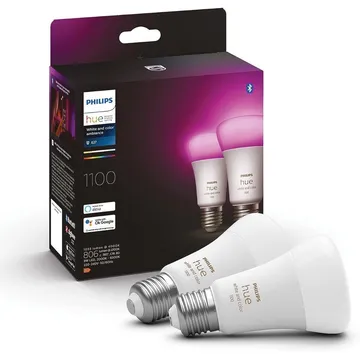
Philips Hue White and Colour Ambiance Bulb, E27 1100 lm
An E27 colour bulb rated 1100 lm that changes colour and white temperature, with Bluetooth for the Hue app and Zigbee for a Hue Bridge or Zigbee2MQTT.
Works with


Features
Which features work depends on your hub. Apple Home, Home Assistant and others each expose different ones.
About
An E27 colour bulb rated 1100 lm (75 W equivalent) that changes colour and white temperature, sold on Amazon UK as a 2-pack. It pairs over Bluetooth with the Hue app and talks Zigbee to a Hue Bridge or Zigbee2MQTT.
Pairing
- Add it in the Hue app: with a Hue Bridge, scan the QR code under Settings, Devices; without one, add it over Bluetooth from the same place.
- Add it in the Hue app: with a Hue Bridge, scan the QR code under Settings, Devices; without one, add it over Bluetooth from the same place.
- Then in Aeotec Smart Home Hub
- Open the SmartThings app, tap +, then Add device.
- Choose Scan nearby to start the search.
- Pick a room and give the device a name.
- Add it in the Hue app: with a Hue Bridge, scan the QR code under Settings, Devices; without one, add it over Bluetooth from the same place.
- Add it in the Hue app: with a Hue Bridge, scan the QR code under Settings, Devices; without one, add it over Bluetooth from the same place.
- Then in Hubitat
- In Hubitat, open Devices and choose Add device.
- Pick Zigbee, then Start Zigbee pairing.
- Name the device and choose a room once it is found.
- Add it in the Hue app: with a Hue Bridge, scan the QR code under Settings, Devices; without one, add it over Bluetooth from the same place.
- Then in Third Reality Smart Hub
- Open the Third Reality app and choose Add device.
- Pick the device type and follow the app’s prompt.
- Give the device a name and choose a room.
- Add it in the Hue app: with a Hue Bridge, scan the QR code under Settings, Devices; without one, add it over Bluetooth from the same place.
- Then in Home Assistant
- Go to Settings → Devices & services and open the ZHA integration.
- Choose Add device to start the scan.
- Pick the device when it appears, then assign it to an area.
- Add it in the Hue app: with a Hue Bridge, scan the QR code under Settings, Devices; without one, add it over Bluetooth from the same place.
- Then in Zigbee2MQTT
- Open the Zigbee2MQTT frontend and turn on Permit join for the coordinator.
- Wait for the device to appear in the Devices list.
- Rename it and assign it to a room.
- Add it in the Hue app: with a Hue Bridge, scan the QR code under Settings, Devices; without one, add it over Bluetooth from the same place.
- Then in deCONZ
- Open Phoscon and go to Devices, then choose the kind of device.
- Start the search and keep the device close to the ConBee or RaspBee.
- Give the device a name when it appears.
- Add it in the Hue app: with a Hue Bridge, scan the QR code under Settings, Devices; without one, add it over Bluetooth from the same place.
- Then in Zigbee for Domoticz
- Open the Zigbee for Domoticz interface and allow new devices to join.
- Wait for the device to appear, then give it a name.
About 2 minutes. Put the device into pairing mode first, then add it to your hub.
FAQ
Can you use Philips Hue without a bridge?
Yes for simple control: the bulb pairs over Bluetooth with the Hue app. A Hue Bridge, sold separately, adds more features.
How bright is the Hue White and Colour Ambiance E27 1100 lm bulb?
1100 lm, the 75 W equivalent, which suits a full room with a single light source.
Does it work with Zigbee2MQTT?
Yes. Zigbee2MQTT lists it as model 9290024688 and exposes brightness, colour temperature, xy and hue-saturation colour, power-on behaviour and effects.