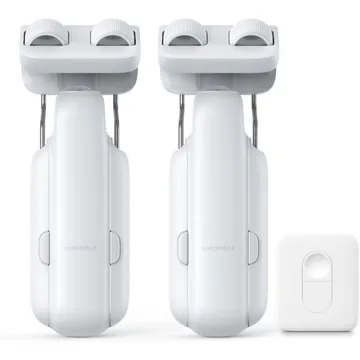
SwitchBot Automatic Curtain Opener 3 Rod, 2-pack with remote
A battery curtain motor that joins Apple Home, Alexa, Google Home and SmartThings over Matter via a SwitchBot Hub Mini Matter Enabled, Hub 2 or Hub 3.
Works with


Features
Which features work depends on your hub. Apple Home, Home Assistant and others each expose different ones.
About
Two rod-type Curtain 3 units and a remote. Each clamps onto an existing rod and pulls up to 15 kg without drilling, and the positioning magnets remove the need to calibrate. Bluetooth and the SwitchBot app cover open percentage and five schedules with no hub. A SwitchBot Hub Mini Matter Enabled, Hub 2 or Hub 3 and a Matter controller add voice control and pair both units with Matter ecosystems.
Pairing
- Press and hold the button for about 3 seconds until the indicator at the bottom blinks rapidly, then add Curtain 3 in the SwitchBot app.
- Then in Apple Home
- Open the Home app, tap +, then Add accessory.
- Scan the Matter code from the device or its app, or enter it by hand.
- Pick a room and give the device a name.
- Press and hold the button for about 3 seconds until the indicator at the bottom blinks rapidly, then add Curtain 3 in the SwitchBot app.
- Then in Home Assistant
- Go to Settings → Devices & services and choose Add integration.
- Pick Matter, then choose Add device.
- Enter the pairing code from the device or its app.
- Press and hold the button for about 3 seconds until the indicator at the bottom blinks rapidly, then add Curtain 3 in the SwitchBot app.
- Then in Homey
- Open the Homey app, go to Devices, then tap +.
- Choose Matter, then scan the pairing code.
- Pick a zone and give the device a name.
- Press and hold the button for about 3 seconds until the indicator at the bottom blinks rapidly, then add Curtain 3 in the SwitchBot app.
- Then in Aeotec Smart Home Hub
- Open SmartThings, tap +, then Add device.
- Choose Matter, then scan the code from the device or its app.
- Pick a room and give the device a name.
- Press and hold the button for about 3 seconds until the indicator at the bottom blinks rapidly, then add Curtain 3 in the SwitchBot app.
- Then in Google Home
- Open the Google Home app, tap +, then Set up device.
- Choose New device, then scan the Matter code from the device or its app.
- Pick a home and a room, then give the device a name.
- Press and hold the button for about 3 seconds until the indicator at the bottom blinks rapidly, then add Curtain 3 in the SwitchBot app.
- Then in Amazon Alexa
- Open the Alexa app, go to Devices, then tap +.
- Choose Add device, then Matter, and scan the code from the device or its app.
- Add the device to a group and give it a name.
- Press and hold the button for about 3 seconds until the indicator at the bottom blinks rapidly, then add Curtain 3 in the SwitchBot app.
- Then in Hubitat
- In Hubitat, open Devices and choose Add device.
- Pick Matter, then start the scan.
- Enter the pairing code, then name the device.
- Press and hold the button for about 3 seconds until the indicator at the bottom blinks rapidly, then add Curtain 3 in the SwitchBot app.
- Press and hold the button for about 3 seconds until the indicator at the bottom blinks rapidly, then add Curtain 3 in the SwitchBot app.
About 2 minutes. Put the device into pairing mode first, then add it to your hub.